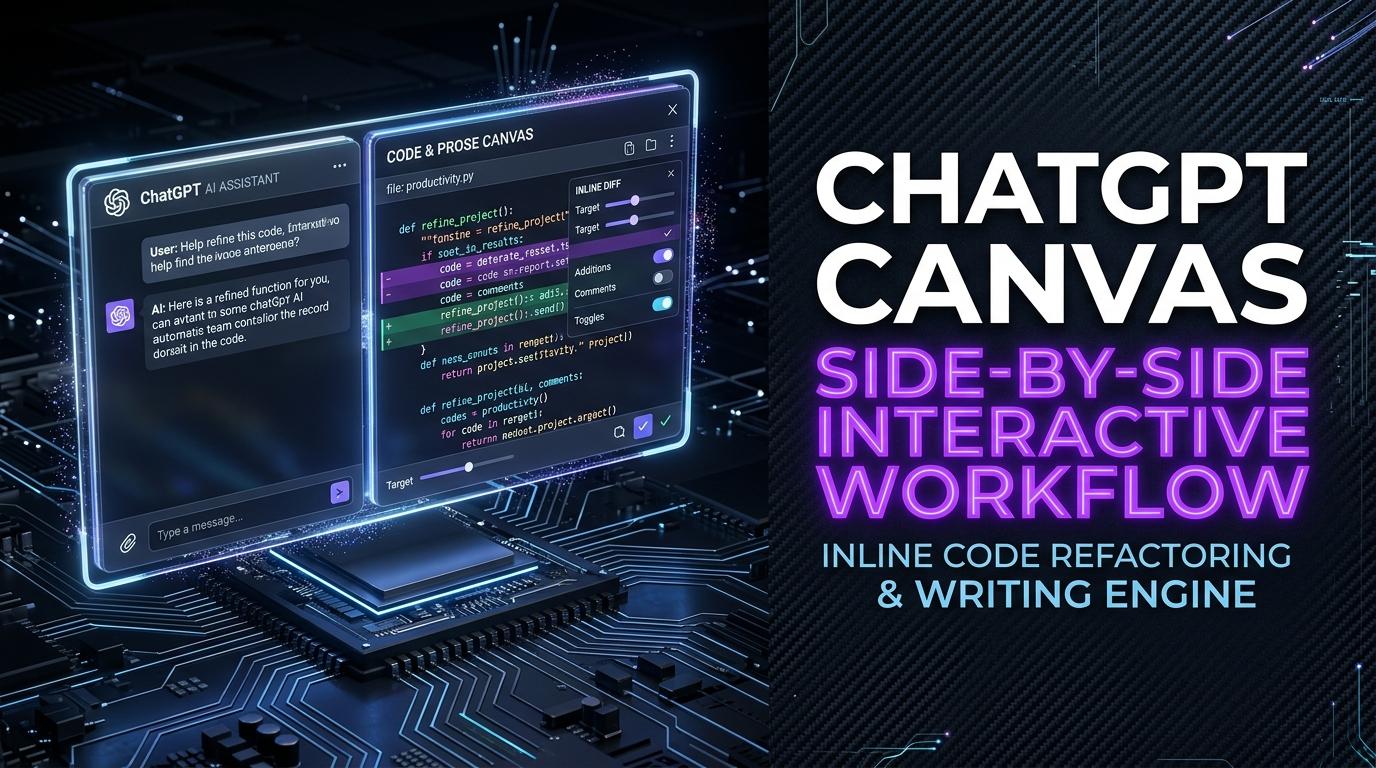
You asked for a 500-line script, got it, spotted a typo on line 42, and asked for a fix. Then you waited while the whole thing regenerated from scratch, sometimes with a new hallucination somewhere in the other 499 lines you didn't touch. If that cycle sounds familiar, Canvas is built specifically to end it.
What Changes When the Document Actually Persists
Canvas splits the interaction in two: the conversation stays on the left, and an editable document or codebase lives on the right, and survives between messages instead of scrolling away.
That persistence changes more than the layout. Highlight a specific function or paragraph, and your next instruction targets exactly that selection, the model updates only what you highlighted and leaves everything around it alone. There's a toolbar for common operations, adjusting reading level, trimming length, shifting tone on the writing side, or running a code review, injecting logging, porting to another language on the coding side. And every change creates a version snapshot, so a revision-history button lets you roll back one bad suggestion without losing everything else.
What You Actually Get Back That a Chat Thread Doesn't
| A regular chat thread | Canvas | |
|---|---|---|
| Where the document lives | Nowhere, it's just scroll history | A persistent pane you keep editing |
| How you fix one line | Regenerate the whole response | Edit exactly that line or block |
| Can you type into it directly | No, it's read-only chat bubbles | Yes, full editing |
| Reviewing a change | Copy-paste and eyeball it | Inline diff, additions and deletions |
| How fast is an edit cycle | Waiting for a full regeneration | Nearly instant, surgical |
Two Ways People Actually Use This
Fixing one thing without touching the rest. Select the block with the bug, and instead of a vague "fix this," give it a real constraint: "Refactor this database query to use parameterized inputs. Keep the surrounding variable names and error types identical." You'll see the change as a diff, green additions, red deletions, and you can review it before it lands in your branch, the same way you'd review a colleague's PR.
Running a review pass before you do it yourself. Paste your architecture draft or API spec in, click Code Review, and the model annotates it with inline comments, flagging race conditions, unhandled exceptions, memory leaks. Accept what's right, dismiss what isn't, one click each.
Where It Trips People Up
Ask it to "shorten" a technical document and it can be aggressive about what it decides is cuttable, edge cases, caveats, a configuration table you actually needed. Read the diff before accepting a trim, don't assume shorter means only the fluff got removed.
If you paste several related files into one Canvas session, it can lose track of which file boundary it's editing across. Keep one primary file per session rather than mixing a frontend and backend file together.
And the automated code review is good at catching common syntax and exception patterns, it's not a substitute for a reviewer who understands your actual business logic or how your services talk to each other under load. Use it to catch the obvious stuff fast, not as your only review.
Frequently Asked Questions
Is Canvas running a different model under the hood?
It's a fine-tuned variant of OpenAI's flagship models, trained specifically to recognize when to open a document pane and how to express an edit as a targeted instruction rather than a full rewrite.
Can I get files out of Canvas and into my actual repo?
There's a one-click copy and download. For tighter, automatic sync with a local IDE, a tool built for that workflow, like Claude Code or Antigravity, integrates more directly than copy-paste ever will.
What if Canvas doesn't open automatically for what I'm working on?
Say "open in canvas" or "use canvas for this file" directly in your prompt, or toggle it manually from the model selector.

Comments
Comments are reviewed before appearing publicly.
No comments yet — be the first.